> For the complete documentation index, see [llms.txt](https://loyalproxy.gitbook.io/docs/llms.txt). Markdown versions of documentation pages are available by appending `.md` to page URLs; this page is available as [Markdown](https://loyalproxy.gitbook.io/docs/proxy-configuration/fingerprint-browser-setup-tutorial/vmlogin.md).
# VMLogin
## VMLogin
{% hint style="warning" %}
**Usage Notice:** All LoyalProxy proxy products must be operated in an overseas network environment. Please ensure that you have already configured the corresponding overseas network environment yourself.
{% endhint %}
This tutorial will introduce how to configure a [**LoyalProxy**](https://www.loyalproxy.com/) proxy IP in the **VMLogin anti-detect browser** to achieve a secure, isolated multi-account operating environment.
> **Tip**: Dynamic residential IPs are used in the same way as static residential IPs.
### 1. Download and Install the VMLogin Client
Visit the **VMLogin official website**, register an account, and download the client. After installation is complete, launch the software.
### 2. Create a New Browser Profile
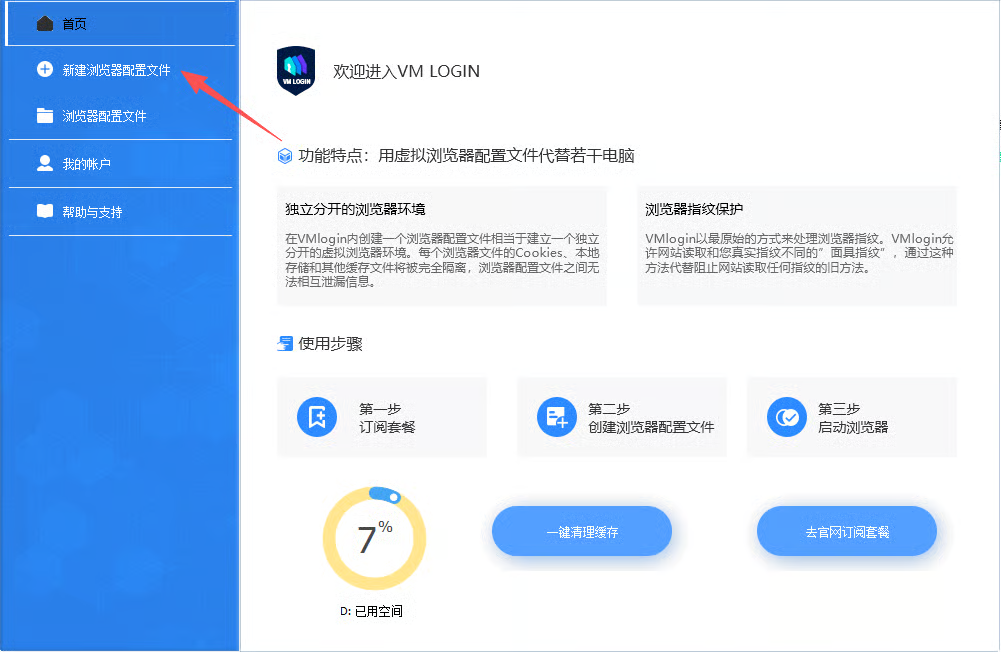
After opening the VMLogin client, click the **New Browser Profile** button on the main interface to enter the configuration page.
### 3. Configure Basic Browser Information
In the pop-up configuration window, fill in the basic information for the browser profile, such as name, notes, group, etc.
### 4. Enable the Proxy and Select the Proxy Type
On the configuration page, find the **Proxy Server** section, check **Enable Proxy Server**, and then select the appropriate proxy protocol.
> **Please note**: LoyalProxy currently supports two proxy protocols, **HTTP** and **SOCKS5**. Please choose according to your actual needs.
### 5. Get LoyalProxy Proxy Information
Log in to the [LoyalProxy platform](https://www.loyalproxy.com/), go to the **Static Residential IP** page, and click **IP List** to view and copy your proxy information (server address, port, account, password).
### 6. Fill in Proxy Information
Fill the copied proxy information into the corresponding input fields in the VMLogin proxy settings.
### 7. Test Proxy Connectivity
After filling in the information, click the **Test Proxy** button, and the system will automatically check the connectivity of the proxy IP. If **Proxy Test Successful** is displayed, the configuration is correct.
### 8. Launch the Browser Environment
Return to the profile list, find the profile you just created, and double-click the entry or click the **Launch** button to open the browser.
### 9. Verify the Proxy IP
In the opened browser, visit an IP detection website to confirm that the displayed IP address matches the proxy IP provided by LoyalProxy.
***
> At this point, you have successfully configured the LoyalProxy proxy IP in the VMLogin anti-detect browser and can begin secure, isolated multi-account operations.