> For the complete documentation index, see [llms.txt](https://loyalproxy.gitbook.io/docs/llms.txt). Markdown versions of documentation pages are available by appending `.md` to page URLs; this page is available as [Markdown](https://loyalproxy.gitbook.io/docs/proxy-configuration/proxy-tool-setup-tutorial/v2rayn.md).
# v2rayN
{% hint style="warning" %}
**Usage Notice:** All LoyalProxy proxy products must be operated in an overseas network environment. Please ensure that you have already configured the corresponding overseas network environment yourself.
{% endhint %}
This article will guide you through configuring a **Static Residential IP** via **v2rayN** on Windows to achieve a more secure network access environment.
> **Tip**: The usage method for dynamic residential IPs is the same as that for static residential IPs.
### 1. Preparations
**System and Software Requirements**
* **Operating System**: Windows (this tutorial uses Windows as an example)
* **Software Installed**: v2rayN (latest version)
**Required Proxy Information**
Obtain static residential proxy information from [LoyalProxy](https://www.LoyalProxy.com/zh-cn/):
* Server address
* Port number
* Username
* Password
### 2. v2rayN Configuration
**Add a Subscription Group**
1. Open the v2rayN software.
2. Find the **Subscription Group** option in the top menu bar.
3. Click **Add**.
4. Fill in the group information:
* **Group Name**: A custom group identifier
* **Pre-proxy**: Select an overseas node (used to connect to the overseas environment)
* **Landing Proxy**: Fill in the LoyalProxy proxy information
**Add a Proxy Configuration**
1. Select the group you just added.
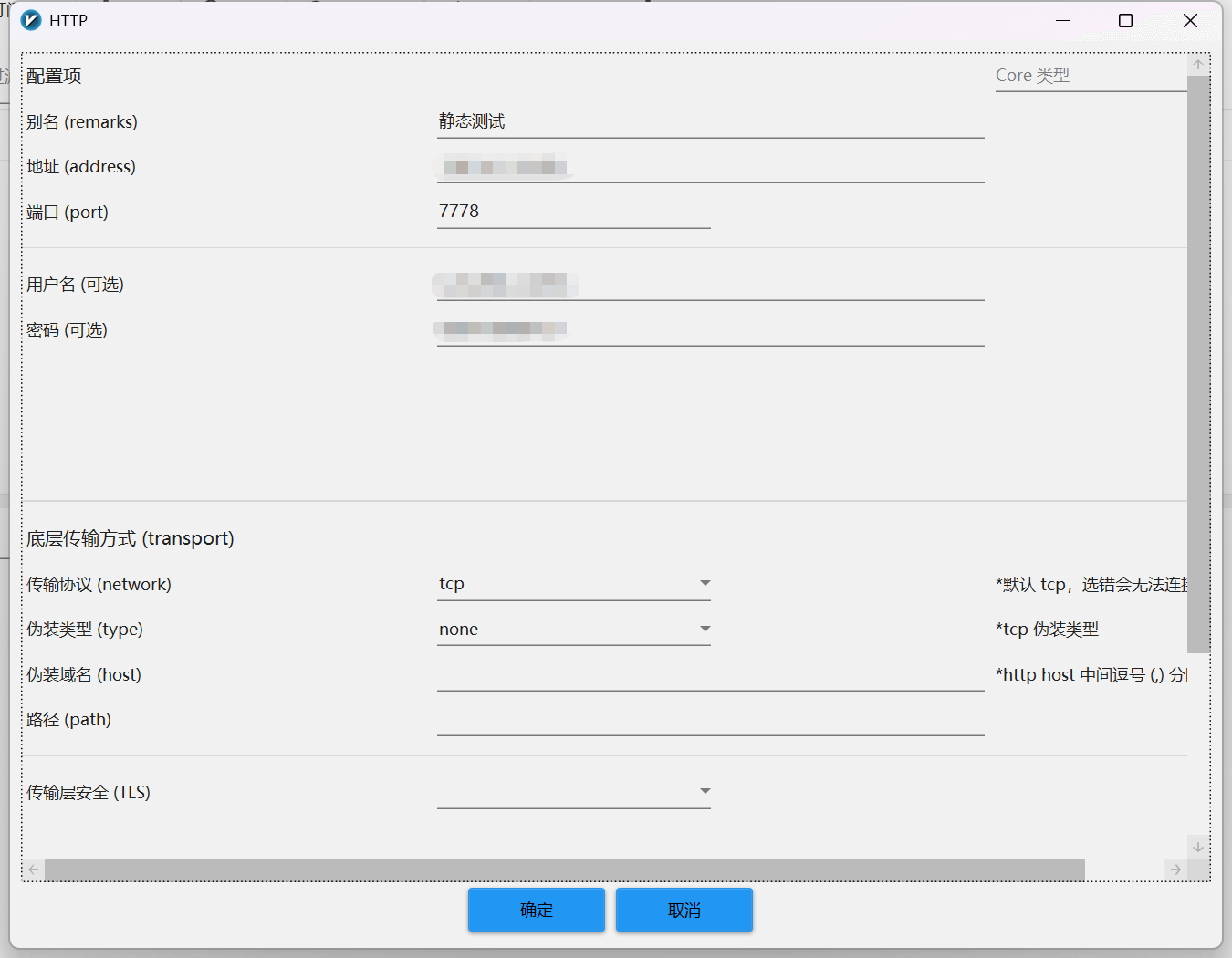
2. Find the **Configuration Items** option in the top menu bar.
3. Select the protocol: **HTTP Proxy** or **SOCKS Proxy**.
4. Fill in the proxy information obtained from LoyalProxy:
* **Address**: Server address
* **Port**: Proxy service port number
* **Username**: Proxy account
* **Password**: Proxy password
After saving the configuration, you can view the added proxy in the node list.
### 3. Enable the System Proxy
After completing the proxy configuration:
1. In the v2rayN node list, select the LoyalProxy proxy you just added.
2. Right-click the node and select **Set as Active Server**.
3. Return to the v2rayN main interface.
4. Enable **System Proxy**.
5. Select the mode **Auto-configure System Proxy**.
Once enabled, Windows system network traffic will be routed through the proxy set in v2rayN.
### 4. Check the Proxy Connection
In v2rayN:
1. Select the configured LoyalProxy proxy node.
2. Click **Test Server Latency**.
3. Check the proxy connection status.
If latency information is displayed normally, the proxy configuration is successful.
**Verification Method**
Open a browser and visit an IP detection website (such as ipinfo.io) to confirm that the displayed IP address matches the static residential proxy IP you configured.
### Notes
1. **Usage Notice**: LoyalProxy proxy IPs must be used in an overseas network environment. Please configure the overseas network environment in advance.
2. **Software Coordination**: Ensure that the configuration steps for v2rayN and related proxy software are correct to avoid functional conflicts.
3. **Traffic Path**: The system traffic path is: Application → v2rayN → Overseas Node → Target Website.
4. **Performance Impact**: Chained proxying may slightly increase latency. It is recommended to choose a low-latency exit node.
***
> At this point, you have completed configuring the LoyalProxy static residential proxy separately in v2rayN and can access the target network environment through the residential IP.